

How it works
A practical overview of how IMGLoader handles account connections, exports, transfers, provider limits, and support.
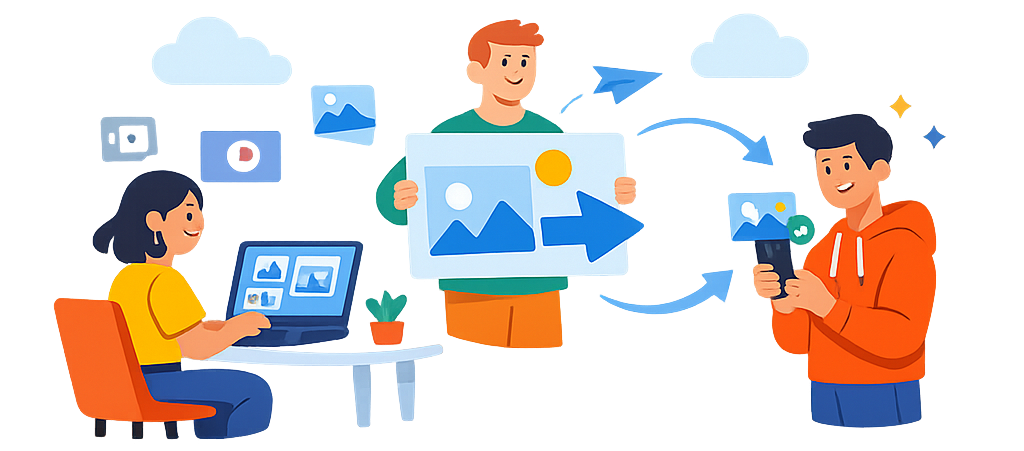
Connect (official OAuth)
Choose a collection, then items
Download ZIP or Transfer
Built on official APIs
IMGLoader is designed around official OAuth and provider APIs instead of scraping browser pages or requiring extensions.
Maintained by a real company
IMGLoader is a Halo Media Solutions product with public support contact details, legal pages, and an operating company website.
Documented edge cases
When provider rules affect results, such as Google Photos Picker limits or Pinterest secret-board video access, the app and guides call that out.
Downloads (ZIP exports)
IMGLoader fetches originals and packages them into a ZIP. For best results, keep this tab open while the job starts and the download begins.
- Item exports: select items and click Download Selected.
- Bulk collection exports: select multiple boards/galleries/collections and click Download Board(s) or Download Collection(s).
Google’s library browsing is handled via the Picker flow, so IMGLoader loads only what you explicitly pick in Google Photos. The Picker currently limits each session to up to 2,000 items, so large exports are done in batches using Pick More.
Transfers (between providers)
Transfer uploads items into a destination provider (example: Pinterest → Google Photos), optionally creating a destination collection.
- Switch to the Transfer tab on the right.
- Choose a destination from To, then pick a destination mode (New / Existing / optional No album).
- Click Transfer Selected, then use Open on … when it finishes.
If an item can’t be uploaded (API limitations, unsupported media types, etc.), the job continues and IMGLoader surfaces a clear Last failure reason while processing the rest.
Provider options (exact UI labels)
Below are the checkboxes/radios you’ll see for downloads and transfers. Most are optional — defaults work well.
Pinterest▾
Downloads
- Bulk boards: select boards (checkboxes), optional Group in board folders, then click Download Board(s).
- Single board (pins): click View pins, select pins, optional Group in board folder, then click Download Pin(s).
- Video note: Pinterest video pins can’t be loaded from secret boards. If a board is secret, open it in Pinterest → Board settings → turn off Keep this board secret, then reload IMGLoader.
Transfers
- Destination mode (radio): Create new or Use existing.
- When Create new is selected:
- Keep this board secret (checkbox)
- Personalization (checkbox)
Google Photos▾
Downloads
- Click Pick from Google Photos (or Pick More), then click Open to load your selection.
- Select items (checkboxes) and click Download Selected.
Transfers
- Destination mode (radio): Create new, Use existing, or No album.
- Use existing only works for albums created through IMGLoader (Google doesn’t allow third‑party apps to add to other existing albums).
- No album uploads directly to your library without creating/using an album.
DeviantArt▾
Downloads
- Bulk galleries/collections: select rows (checkboxes), optional Group in gallery/collection folders, then click Download Collection(s).
- Single gallery/collection: click Open, select deviations, then click Download Selected.
- Naming note: DeviantArt Collections appear under your Favourites tab, while Galleries appear under your Gallery tab.
- Sta.sh note: DeviantArt doesn’t provide a public API to browse Sta.sh items, so IMGLoader can’t list or download your stash. You can still upload to stash via Transfer by choosing Deviations only → Upload to stash.
Transfers
- Destination mode (radio): New, Existing, or Deviations only.
- Mature content (checkbox): mark uploaded deviations as Mature.
- If you choose New or Existing, you’ll also choose the destination type (radio): Gallery or Collection.
- If you choose Deviations only, you’ll choose where they go (radio): Upload to stash or Publish.
When you’re ready, click Transfer Selected. After a successful transfer, use Open on … to jump to the destination.
How IMGLoader is tested and maintained
IMGLoader is maintained by Halo Media Solutions. Before workflow changes ship, we verify the current provider UI, OAuth flow, export behavior, and transfer behavior against live product paths.
Connection checks
Export checks
Transfer checks

What IMGLoader does
- Bulk download: export selected media as a ZIP.
- Transfers: move items across providers using official APIs.
- Clear status: long jobs show helpful failure reasons.
Privacy‑first by design
IMGLoader uses official OAuth and accesses platform data only with your explicit permission. We don’t ask you to create an IMGLoader account, and we don’t collect passwords for connected platforms.
Guides & Resources
Provider-specific walkthroughs, comparisons, and troubleshooting references live in the IMGLoader guide library.
Ready to try it?
Open the app and start with any provider.