

How to Transfer Pinterest Boards to Google Photos
Move Pinterest pins into Google Photos albums without downloading files to your device first.
Tested against the current IMGLoader workflow and provider UI available as of March 29, 2026. Where platform rules or API limits affect results, this guide calls them out explicitly.
Pinterest and Google Photos do not provide a native bridge between each other. Without a dedicated workflow, you end up downloading files locally and then uploading them again, which is slow and error-prone for large boards.
IMGLoader handles that as a transfer workflow instead. The source items are fetched from Pinterest, then uploaded into Google Photos with the destination mode you choose.
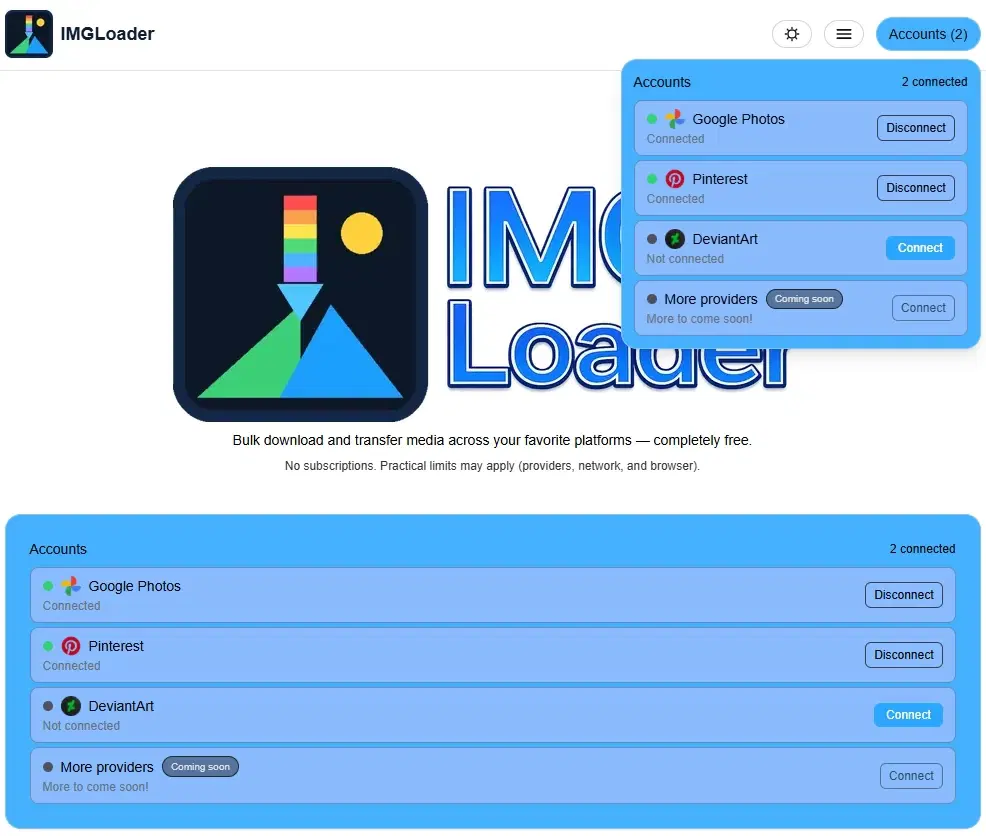
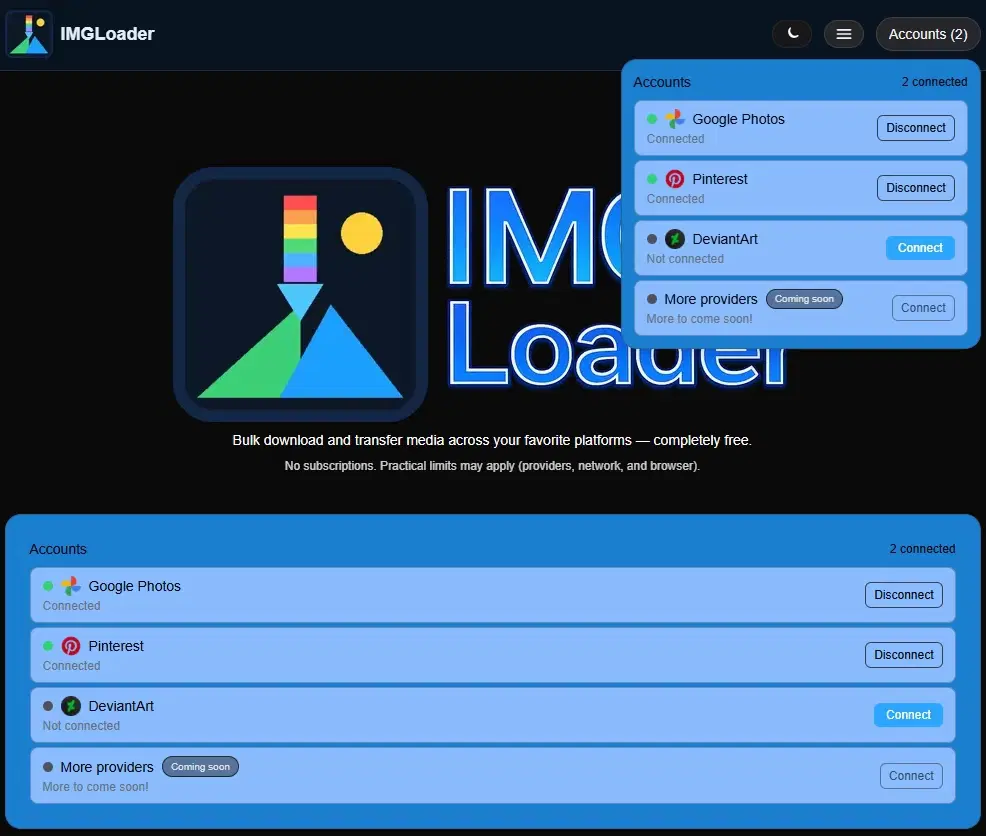
Step 1: Connect both providers
Start by connecting Pinterest and Google Photos in the Accounts area. Pinterest provides read access to the source board content, while Google Photos provides the upload path for the destination.
Because Google Photos uses provider-specific rules around album creation and uploads, connecting the correct Google account up front matters. If you later switch Google accounts, existing destination albums created through IMGLoader will not follow you automatically.
Step 2: Select the source board or pins
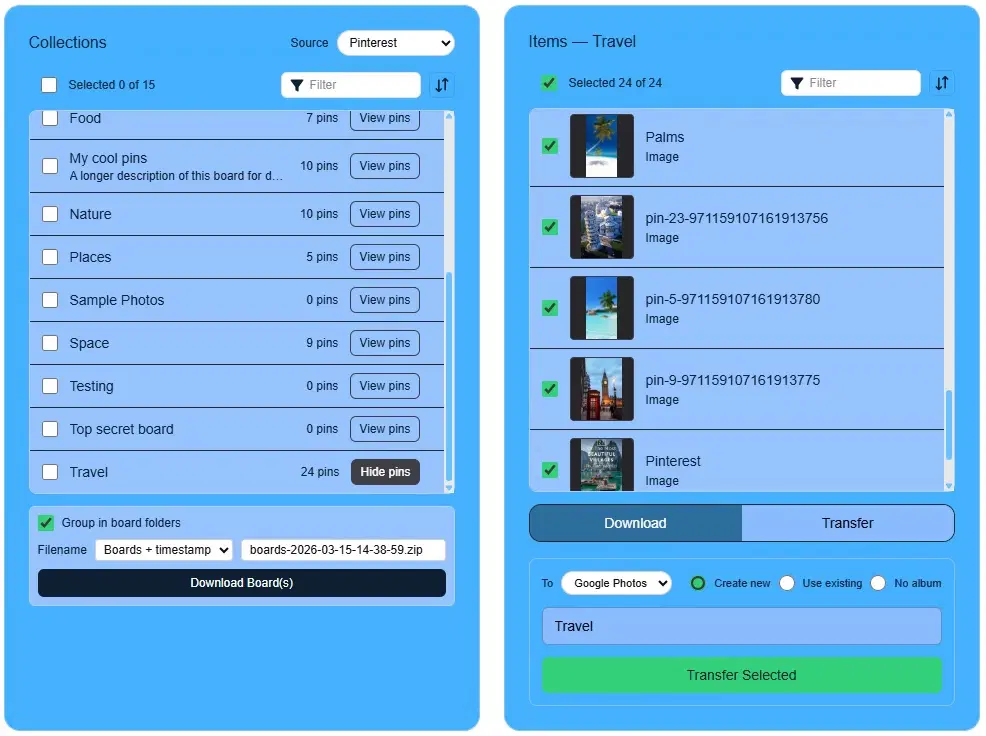
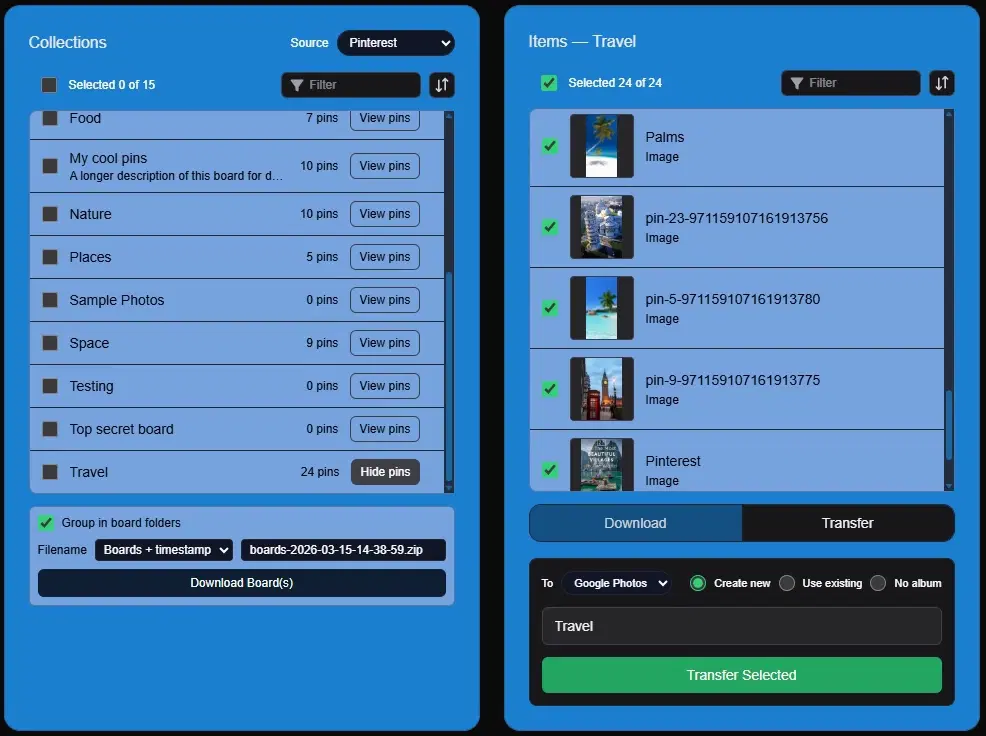
Choose whole boards from the collections view if you want a broad migration, or open a board and select individual pins if you only want part of it. Once your source selection is ready, switch to the Transfer tab.
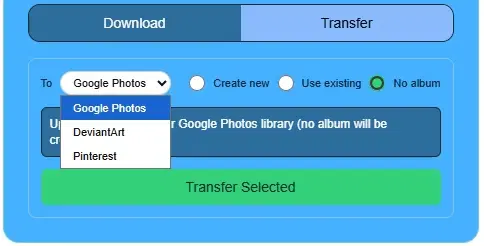
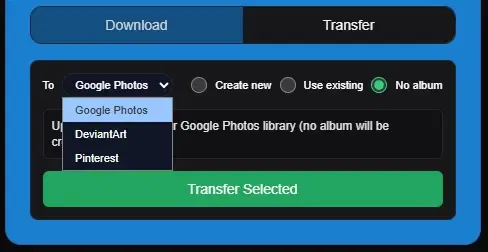
Then set To to Google Photos. The app keeps the selected Pinterest items as the source set for the transfer job.
Step 3: Pick the right Google Photos destination mode
- Create new creates a new Google Photos album for the batch.
- Use existing targets an album that was previously created through IMGLoader.
- No album uploads directly into the Google Photos library without album placement.
After that, click Transfer Selected and let the job run. When it finishes successfully, IMGLoader can open the resulting destination for review.
What transfers well, and what does not
- Image files transfer directly and can be organized into a new destination album.
- Video pins only transfer when Pinterest exposes a usable video URL for that item.
- Board-level organization can be preserved by creating a new destination album per board when you batch carefully.
- Platform-specific text metadata does not always map one-to-one between Pinterest and Google Photos.
Common Google Photos destination mistake
For Use existing, Google Photos only accepts the IMGLoader-managed albums the app created earlier. If an album was deleted in Google Photos or you are connected to a different Google account than the one that created it, choose a different album or switch to Create new.