

How to Download Google Photos Albums with Picker Batches
Use Google Photos Picker, editable batch names, and batch folders to export album-sized Google Photos groups with IMGLoader.
Tested against the current IMGLoader workflow and provider UI available as of April 18, 2026. Where platform rules or API limits affect results, this guide calls them out explicitly.
Google Photos exports in IMGLoader now start from Google Photos Picker. Instead of IMGLoader browsing every album in the background, you open Picker, choose the photos and videos you want Google to share with IMGLoader, then return to IMGLoader to download that selected batch.
That means there is no separate "No album mode" to turn on for Google Photos downloads. The practical album workflow is to create one Picker batch per album or category, rename each batch in IMGLoader, then download those batches together.
Step 1: Pick one album-sized batch
- Connect Google Photos in IMGLoader.
- Click Pick from Google Photos.
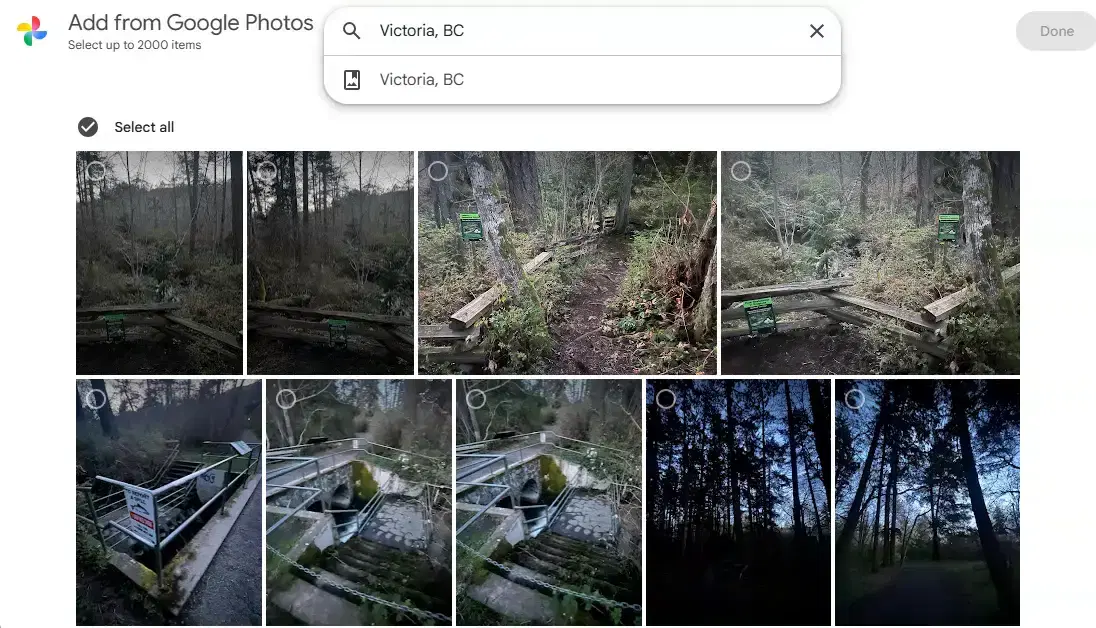
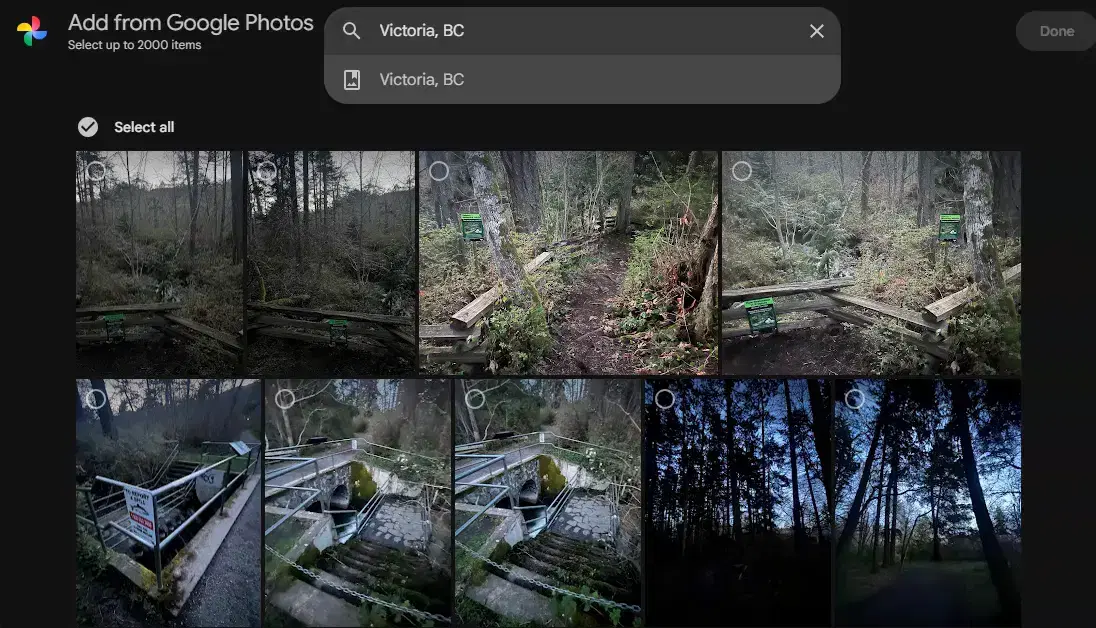
- In Google Photos Picker, search for the album name or category you want.
- Select the items for that album, then finish the picker session.
Google Photos Picker can show search results for album titles, dates, locations, and other terms, but the completed API response gives IMGLoader the selected media items, not a reliable album folder label.
Step 2: Rename and repeat
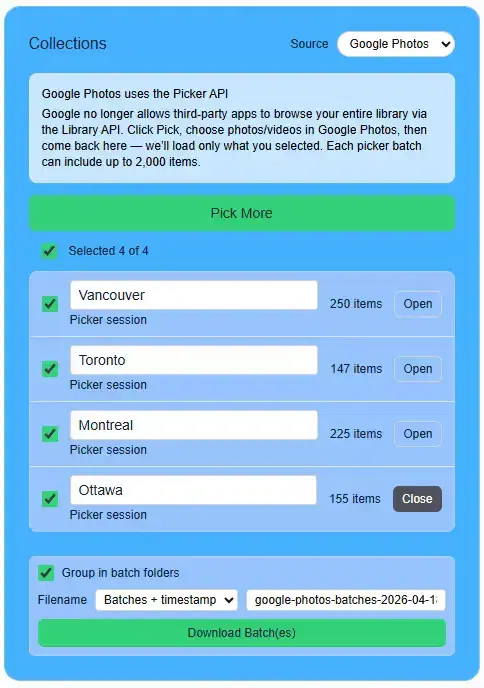
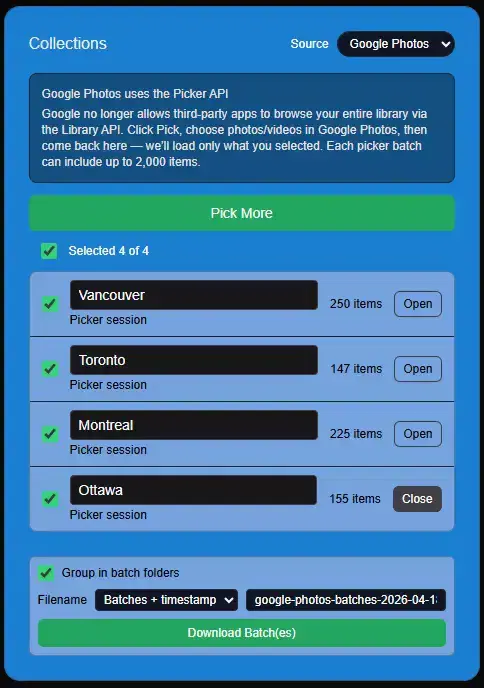
When the selection appears in IMGLoader, edit the default batch name from something like Selected batch 1 to the album name you meant to capture. Then click Pick More and repeat the process for the next album.
After all the album batches are loaded, select the batches you want to download. Keep Group in batch folders enabled if each batch should become its own folder. Turn it off when you want every selected file placed at the top level of the ZIP.
A good album export plan
- Use one picker session per album, event, date range, or other folder name you want in the ZIP.
- Rename the batch before starting the next one so the list stays readable.
- If one album is larger than the Picker limit, split it into clear parts such as "Summer 2024 - part 1" and "Summer 2024 - part 2".
- Leave batch grouping enabled when the ZIP should preserve your album-style organization.
- Disable batch grouping only when you intentionally want one flat ZIP.
Why album names are manual
Picker is designed around explicit user selection. IMGLoader can see the media items Google returns for the finished picker session, but it should not pretend it knows the original album context when Google has not provided that as dependable folder metadata. Editable batch names make that choice visible and keep the ZIP folders under your control.